
Getting Started:
Opus Creator and Opus Pro let you design interactive publications and applications on screen. Opus uses the metaphor of a book to represent your project and you can create a program in the same way you might use a DTP or graphics package - but with interactivity.
You combine all types of multimedia resources and interactive elements into your project by simply drawing them into place on a page.
Click the appropriate tool and then draw the object wherever you want it to go.
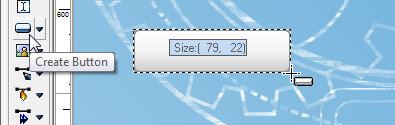
Some objects are empty containers until you choose the content for them.
Simply write text exactly where you want it on the page
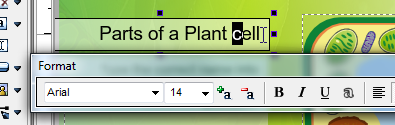
See Creating Content.
You can even draw frames to add borders or backgrounds or to hold groups of objects or special objects like rollover frames or multiframes.
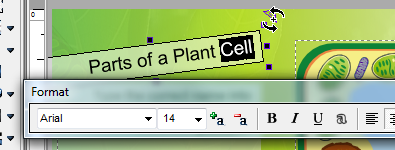
Then use the multi-function control handles on the object to resize, rotate and skew as required - all on screen and still editable.
Useful ready-made components include rollover objects for tooltips, listboxes with customisable scrollbars, volume sliders and more. And now we've added a huge range of ready-made but completely customisable questions with automated scoring and topics.
But when you need to go further to add some extra sophistication you're not stuck without real control.
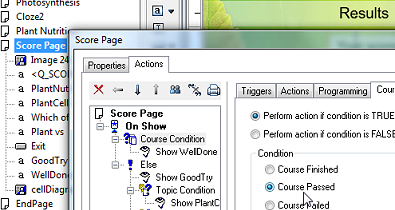
Then add actions, transitions or animations all by simply selecting options from a dialog. Even drag and drop, collision detection, scoring, conditional-branching, checking for course and topic status and loops need no programming.
Preview instantly at any time and then publish to a stand-alone version for distribution for pleasure, promotion or profit.
All objects have a set of Properties so that you can apply borders, backgrounds as well as transitions such as flips and scrolls and design effects such as transparency, textures and blends.
Any object can also have actions attached which can be applied by choosing options. You choose the trigger you want to start the action and then select the action from a set of categories and how it should be performed.
All these properties and actions are applied simply by selecting the relevant settings from a set of tabbed dialogs. There's no programming involved unless you want it.
Your publication can be divided up into chapters each with a different style or size if required. You can launch other programs or display existing documents or web pages.
Opus is provided with a range of templates and sample publications containing many of the basic pages you will need, together with other components, clipart and samples so its even easier to get started.
A further range of sample publications is regularly extended here on the website. So you can get productive today.
The WYSiWYG editor and freeform layout means you can see what your page looks like as you go. You can also preview and test your publication at any time without waiting for it to compile and even test inidividual pages as you go. When you want to get clever, there's a full debugging console available to monitor variables and scripts.
Once you have finished your publication you then publish it to create a version which you can distribute for profit, promotion or pleasure.
Finished Opus Pro projects can be published in a number of different formats for distribution to others without needing Opus themselves (no projector required, no pack and go necessary) such as;
Opus Pro and Opus Creator Reference - Getting Started